
As of Dispatch app version 1.8, we've brought you the 'Inbox Search' feature which allows you to easily search through your text messages using keywords or emojis to locate the specific message you're looking for.
You no longer need to waste time scrolling through lengthy conversations to pinpoint the exact message; simply search and you'll locate the message in a matter of seconds.
Here's how
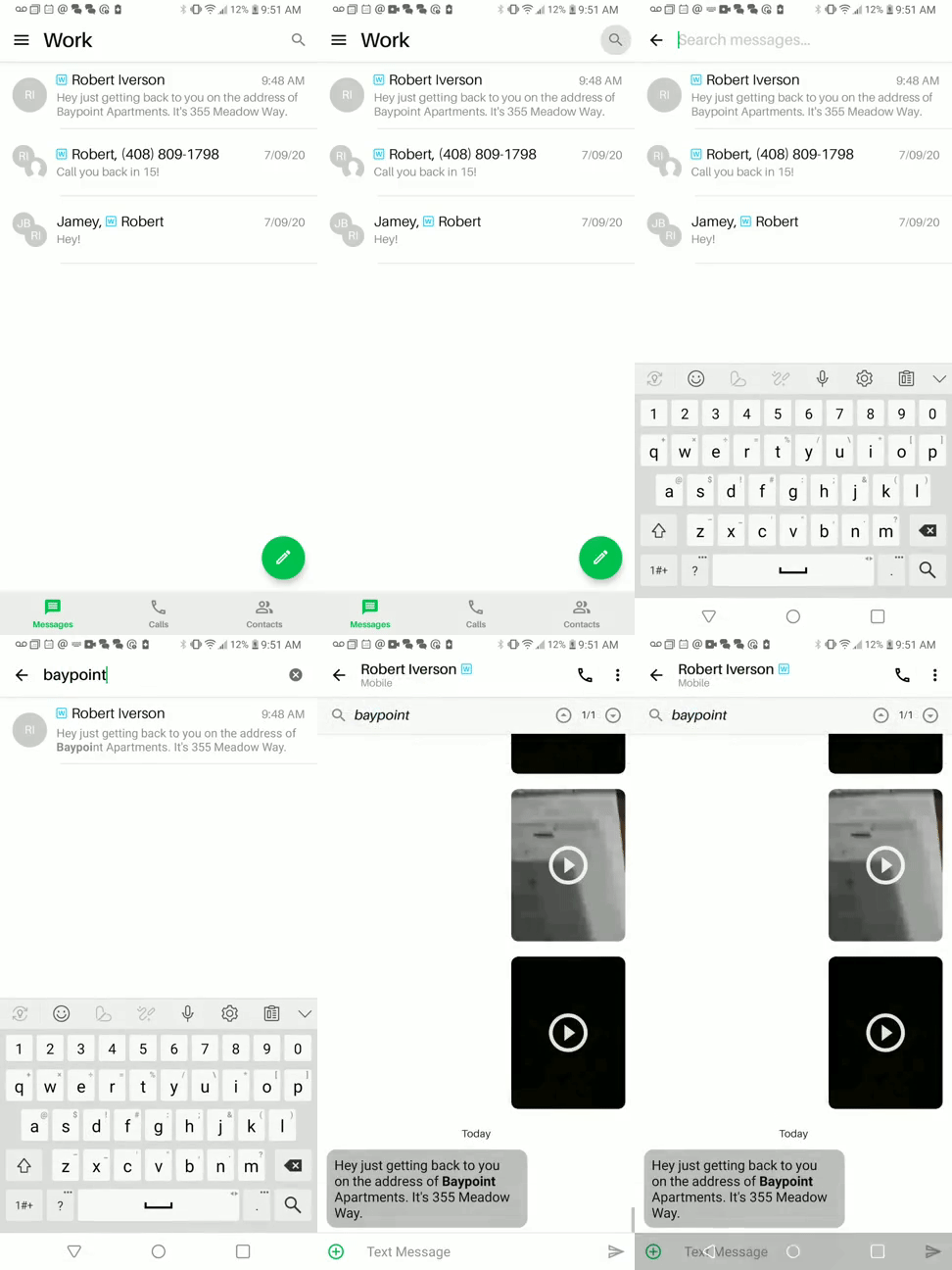
- Choose the category you wish to search & choose the messages tab
- View your inbox
- Tap the magnifying glass in the upper-right corner of the screen
- Type any word(s) that correspond to the message you're looking for
- The message(s) that relate to your search will be shown in bold
For example, if you wish to locate all conversations from your contact "Sue" you cannot search by her name only. Doing so will not yield any results (unless you have the name Sue contained in an existing message.)
If your search produces more than one result in the same conversation:
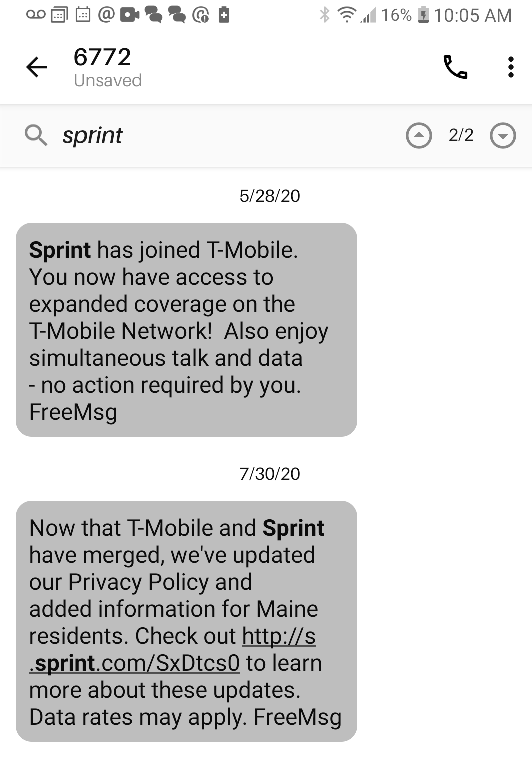
You'll see arrows and the number of results based on the keyword search which will allow you to view all of them.
In the example seen below, the keyword search was "sprint" and within this conversation, 2 results referencing this word were found (shown by the 2/2)
You can click the up and down arrows to flow through all results easily. This is especially helpful if you have a lot of messages within the conversation (no scrolling needed!)
If you have further questions about the inbox search feature, please submit a request.
Comments
0 comments
Please sign in to leave a comment.