
One of the features in Dispatch is the ability to recognize if you have a potential incoming spam calls and/or messages. You can also mark a call or message as spam. First, let's review how you will be notified of spam.
Dispatch will notify you of a potential spam risk in a few ways:
Notification Tray
If you receive a call that Dispatch thinks is spam, you will see a notification in your notification tray with the title "Spam Risk" along with the number below it.

Message Inbox
Dispatch will also alert you of a potential spam text message.
To view your inbox:
- Tap the 'Messages' tab on the bottom navigation bar
- Scroll to find the text message that displays the number and "Spam Risk"
Call History
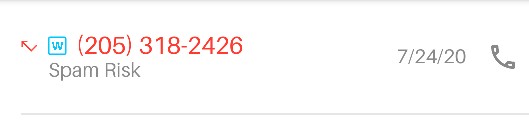
Dispatch also displays the "spam" missed call in your call history.
To view your call log:
- Tap the 'Calls' tab on the bottom navigation bar
- Scroll to find the call line that displays the number and "Spam Risk"
Incoming Call Screen
Dispatch also displays "Spam Risk" when you receive a call that has been identified as 'potential' spam.
Marking messages and calls as spam
On the flip side, if you know that a call or message is spam and would like to mark it as such, you can easily do so from within Dispatch.
Message
To mark a message as spam:
- Tap the 'Messages' tab on the bottom navigation bar
- Tap the message that you wish to mark as spam
- Tap the
 on the top-right
 - Tap 'Mark as spam'
The message you marked as spam will still be displayed in your inbox. To remove the message, swipe 'left' and tap 'Delete'.
Call
To mark a call as spam:
- Tap the 'Calls' tab on the bottom navigation bar
- Tap the call logline that you want to mark as spam
- Tap 'History'
- Tap the on the top-right
- Tap 'Mark as spam'
Need help? Send us an email via Dispatch Settings > Contact Us.
Comments
0 comments
Please sign in to leave a comment.