
Categorization of your contacts is a useful feature that helps keep your work and personal contacts separated, which helps keep you organized.
If at any point you need to remove/unassign a contact or number from one category in Dispatch, you can do so just as easily as when you assigned them.
You can unassign names and numbers from any place in Dispatch whether it be from the messages, call, or contacts tab. Read below for step-by-step instructions.
Removing a contact from a category
Messages Tab
You can remove conversations from a category at any time from the Messages tab. To do so:
- Tap the
 icon on the top-left of your inbox
 - Choose the category that contains the conversation you want to unassign
- Press and hold the conversation(s) you want to remove until a green checkmark appears on the conversation
- Tap the
 'Categorize' icon at the top-right
 - Select the 'new' category box you wish to assign the contact to
- Click 'SAVE'
Calls Tab
You can also remove contacts from a category at any time from the Calls tab. To do so:
- Tap the icon on the top-left of your inbox
- Choose the category that contains the call logline of the name/number you wish to unassign
- Press and hold the call line(s) you want to remove until a green checkmark appears on the call
- Tap the 'Categorize' icon at the top-right
- Select the 'new' category box you wish to assign the contact to
- Click 'SAVE'
Contacts Tab
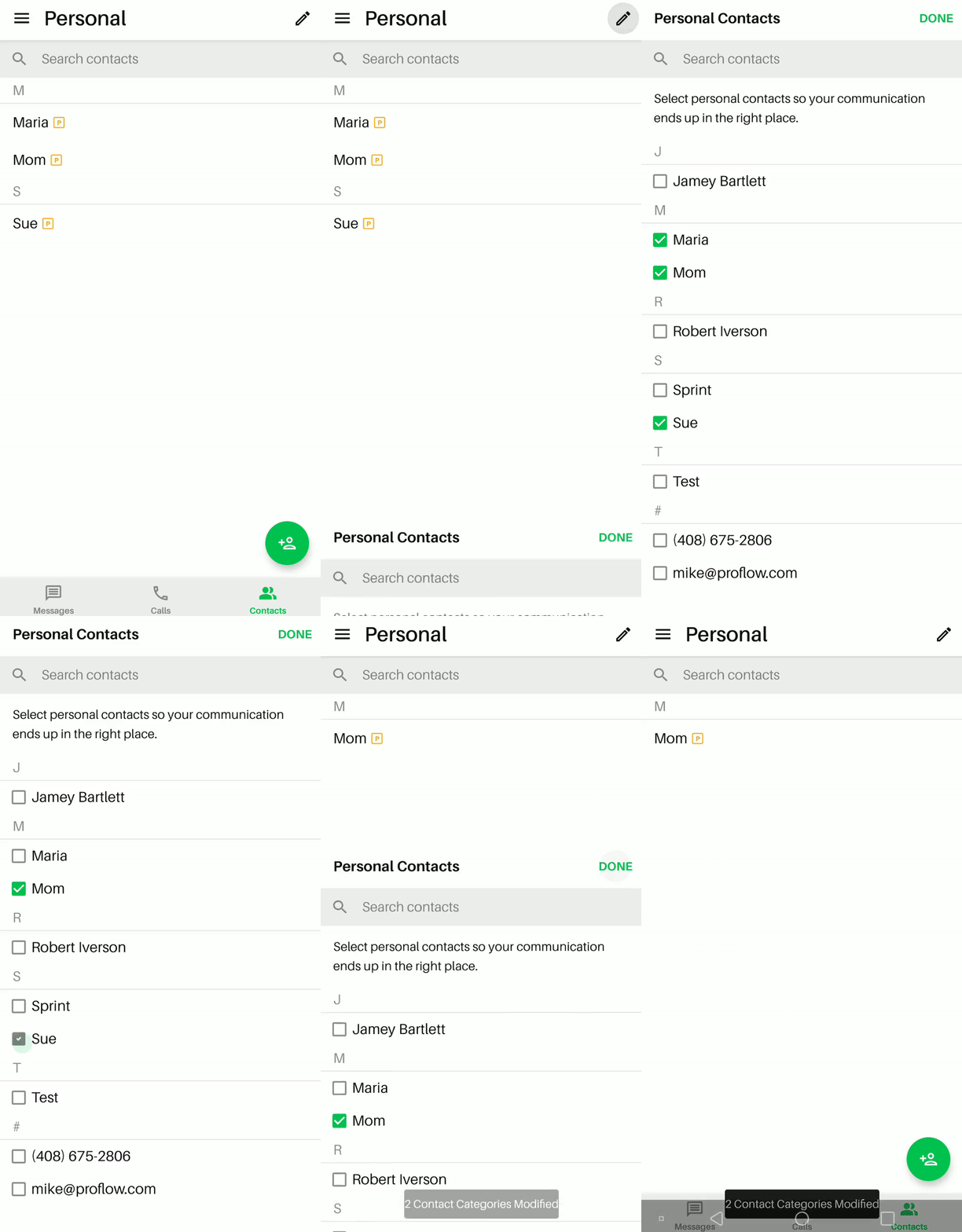
Removing a contact from a category is an option, however, it is done with a couple of different steps. To remove a contact while in the contacts tab:
- Tap the icon on the top-left of your inbox
- Choose the category that contains the contact you want to remove
- Tap the
 pencil icon on the top-right of the screen to pull up the current list of contacts in the category
 - Unselect the Contact name(s) you want to remove from the current category
- Tap 'DONE'
If you are having trouble removing contacts from a category and are in need of assistance, please send us an email via Dispatch Settings > Contact Us.
Comments
0 comments
Please sign in to leave a comment.