
Welcome to the Android-only app, Dispatch. Please review the information below which consists of the initial setup steps, navigating the messages, calls, and contacts tabs, and settings menu in Dispatch.
Initial Steps
- Download and install the Dispatch app from the Google Play Store
- Open the app and tap 'Get Started'
- Ensure that the Default Calling App is set checked
- Tap 'Set' on the Default Messaging App to Dispatch
- Tap 'Change' when you see a pop-up with "You can change your default message app to Dispatch from messages."
- Note: You will be unable to continue with Dispatch if these permissions are not set to default
- Tap 'Continue'

After you have followed the steps above and set Dispatch as your default calling and messaging app, you can now start using Dispatch! Next up, Getting started with Dispatch.
Getting Started
Bottom navigation bar
Your messages, calls, and contacts tabs are displayed at the bottom of the main app screen. You have three tabs to access your information from:

Messages
This will display your messages in the category you are viewing.
Calls
This will display your call history in the category you are viewing.
Contacts
This will display the contacts you have assigned in the category you are viewing.
Settings Menu Options
You have options in Dispatch settings. The menu is comprised of the following:
- MESSAGES & CALLS
- HELP
- ABOUT
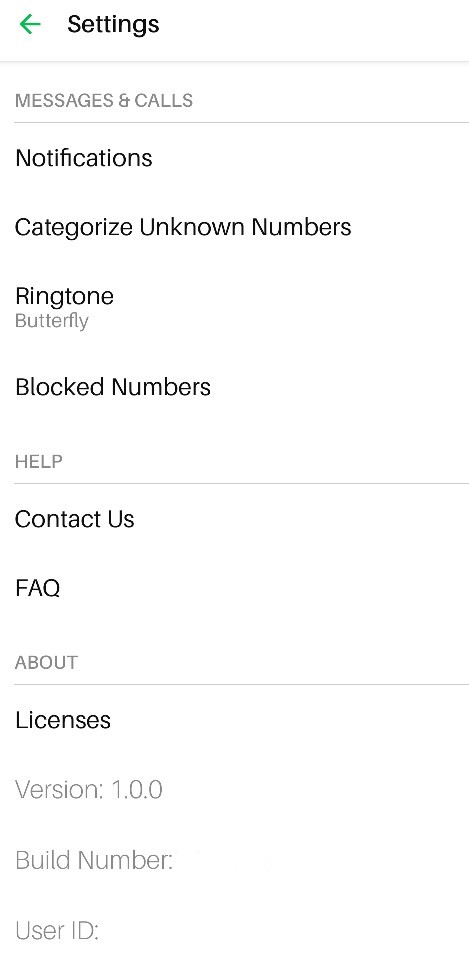
Notifications
This section will bring you to Dispatch's app settings. You have the option to turn certain notifications off, however, this will impact the apps full functionality so it is recommended that you do not customize/disable the default notification settings in Dispatch at this time.
Ringtone
By default, the ringtone set on your Android device is saved as your ringtone for Dispatch. Anytime you make a change in Android device settings, the change will sync in Dispatch and vice versa.
Blocked Numbers
You can see a list of your blocked numbers (if you have any) in this settings option. For more information on how to block or unblock a number from settings, visit our article: How to block & unblock a number
Contact Us
This is the preferred method for contacting our Dispatch Support Team with questions.
Please add information in the subject field as well as a brief description of the issue you are experiencing or question you would like answered and we will further assist you.
FAQ
This section takes you to our Dispatch Support Center where you can browse all relevant help site articles aimed to help you with setting up and managing the Dispatch app on your Android device.
Simply browse the categories or search specific keywords to find relevant content to support your needs.
Licenses
This section takes you to an article that contains our library and license list in Dispatch.
Version, Build Number, & User ID
The information contained in this section displays your current Dispatch app version you are running, as well as the build number and your user ID.
This information will come in handy if you are working with our support team should you run into an issue with Dispatch. The User ID is unique to your device and will allow us to further assist you.
Setting up Categories
The categories feature with Dispatch allows you to separate work and personal contacts. You can filter your contacts & numbers into separate categories to help keep work and personal life separate and organized.
After you've set Dispatch as your default messaging & calling app, you will be able to set up your work and personal categories.
After you have reviewed this onboarding guide, please view other help site articles for more detailed information on each feature by clicking on the homepage.
Need help? Send us an email via Dispatch Settings > Contact Us.
Comments
1 comment
Apple
Please sign in to leave a comment.